Can’t Sign in to Gmail? Causes, Fixes and Recovery Steps
Cannot sign in to Gmail? Start by recording where the process stops: entering your address, entering a password, completing verification, or opening the inbox. A page that will not load and an account that cannot be verified need different responses.
This guide explains how to investigate the problem, prepare useful information for support, and use Google’s recovery process while keeping control of your account. If a safe device remains signed in, preserve that access while checking your options.
Gmail Sign-In Help: Start with the Right Route
Forgotten password or unavailable verification
Open Google Account recovery. Use your familiar device and browser where possible, and follow the options offered for your account.
Signed in, but Gmail will not load
Investigate the browser, connection, and Google Workspace service status. A blank inbox page alone does not establish that your password needs changing.
Work or school account
Ask the organization’s Google Workspace administrator to check account status, service access, and sign-in policies. The person managing your website may not have these permissions.
Unexpected security changes
Use a safe device to review Google’s security guidance. If you lost a phone, distinguish that device from a trusted device still in your possession; protect access on the lost device.
A helper can explain steps, but you should enter credentials and verification information yourself on Google’s official interface. No outside provider can override Google’s ownership checks for a personal account.
Why Can’t You Sign in to Gmail?
Gmail sign-in problems can originate from your account, browser, device, network, or Google’s security systems. Identifying the likely cause will help you choose the correct solution.
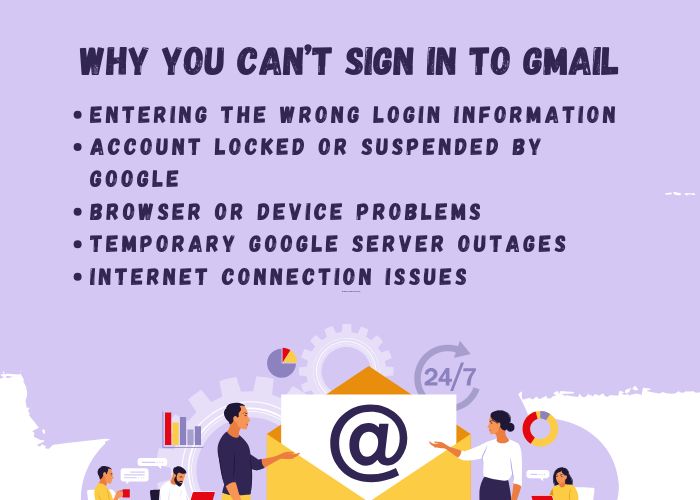
1. Incorrect Email Address or Password
Check sign-in information first because it can be verified without changing the account’s security settings.
Possible mistakes include:
- Entering the wrong Gmail address
- Using the password for another account
- Typing an old password that has already been changed
- Accidentally enabling Caps Lock
- Entering additional spaces before or after the password
- Using an incorrect keyboard language or layout
Check the email address carefully and enter the password manually instead of relying immediately on an outdated password saved in the browser.
2. The Password Was Changed
If a password that previously worked is suddenly rejected, it may have been changed recently.
This can happen because:
- You changed the password on another device
- An administrator changed a work or school account password
- Someone else gained access to the account
- Google required a password reset after identifying suspicious activity
If you do not recognize the password change, begin the official Google Account recovery process immediately.
3. Google Requires Additional Verification
Google may ask you to complete an additional verification step when a sign-in attempt appears unusual.
This may occur when you:
- Sign in from a new computer or phone
- Use a different browser
- Connect from an unfamiliar network or location
- Use a VPN or proxy service
- Delete browser cookies
- Make repeated unsuccessful sign-in attempts
The available challenge depends on the account and sign-in flow. Select an alternative only if Google offers it and you can use it; not every account sees every method listed in this guide.
4. Two-Step Verification Is Not Working
You may know the correct password but still be unable to sign in because you cannot complete the second verification step.
Common causes include:
- The verification code does not arrive
- You changed your phone number
- Your phone is lost, damaged, or unavailable
- The authenticator application was removed
- The phone’s date and time are incorrect
- You no longer have access to the registered security key
Use an available method already associated with the account, or follow recovery if none can be used. If the phone is lost or stolen, also follow Google’s lost-phone and verification guidance to secure it. Do not delay protecting a missing device simply to preserve its signed-in session.
5. Browser Cache, Cookie, or Extension Problems
Damaged cookies, cached login sessions, restrictive privacy settings, or conflicting extensions may prevent the Google sign-in page from working correctly.
Common symptoms include:
- The sign-in page continuously reloads
- A blank page appears
- The account selection screen does not open
- The browser returns to the login page after verification
- Buttons do not respond
6. Outdated or Unsupported Browser
Gmail works best with a current version of a supported browser. An outdated browser may not support the security or web technologies required by the latest version of Gmail. Google recommends using current versions of commonly supported browsers.
7. Incorrect Device Date and Time
Google authentication depends on secure connections and time-sensitive verification processes.
If your computer or phone displays a significantly incorrect date, time, or time zone, authentication codes and secure connections may fail.
8. Internet or Network Problems
An unstable connection can interrupt the sign-in process before authentication is completed.
Possible network-related causes include:
- Weak Wi-Fi
- Unstable mobile data
- DNS problems
- Firewall restrictions
- Office or school network policies
- VPN or proxy interference
9. The Google Account Has Been Disabled
A disabled account is different from a temporary sign-in or verification problem.
Google may disable an account when it believes the account or its activity violates applicable policies. When an account is disabled, the user may be offered an option to request a review through the instructions displayed during sign-in.
10. Temporary Gmail or Google Service Problem
Although uncommon, a temporary service disruption may prevent Gmail from loading or processing sign-ins.
If Gmail fails on several devices and networks, check the official Google Workspace Status Dashboard or try again later before changing account settings repeatedly.
Common Gmail Sign-In Errors and Their Solutions
“Incorrect Password”
First, check Caps Lock, keyboard language, and whether the browser is automatically entering an old password.
If the password is still rejected:
- Select Forgot password?
- If Google asks for a previous password during recovery, give the most recent one you remember.
- Complete the verification steps offered by Google.
- Create a new and unique password if recovery succeeds.
“Google Couldn’t Verify This Account Belongs to You”
This message means Google could not confirm account ownership using the information provided.
Google recommends trying the recovery process again and answering as many questions as accurately as possible. Using a familiar device, browser, and location may make it easier for Google to recognize the recovery attempt.
Verification Code Not Received
Try the following:
- Confirm that the displayed phone number is correct.
- Check whether the phone can receive calls or SMS messages.
- Restart the phone.
- Wait briefly before requesting another code.
- Select Try another way when the option is available.
- Use a backup phone, backup code, trusted device, authenticator application, passkey, or security key if previously configured.
“Browser Not Supported”
Update the browser to its current version or try a different supported browser.
You should also confirm that:
- JavaScript is enabled
- Cookies are allowed for Google sign-in
- The system date and time are correct
- Security software is not blocking Google pages
Gmail Displays a Blank Page
First determine whether the Google sign-in page is failing or the inbox is failing after sign-in. Check the service status and connection, then test the browser environment without immediately changing the password.
A private window or another browser can help compare page-loading behavior. This is a diagnostic test, not the preferred starting environment for account recovery. Do not clear the only useful signed-in session when you do not know how to regain access.
“Your Account Has Been Disabled”
Follow the instructions displayed by Google when you attempt to sign in.
If you believe the account was disabled by mistake and Google provides a review option, submit the requested information honestly and explain the situation clearly.
Do not repeatedly submit conflicting information or pay an outside party that claims it can bypass Google’s review process.
How to Fix Gmail Login Problems Step by Step
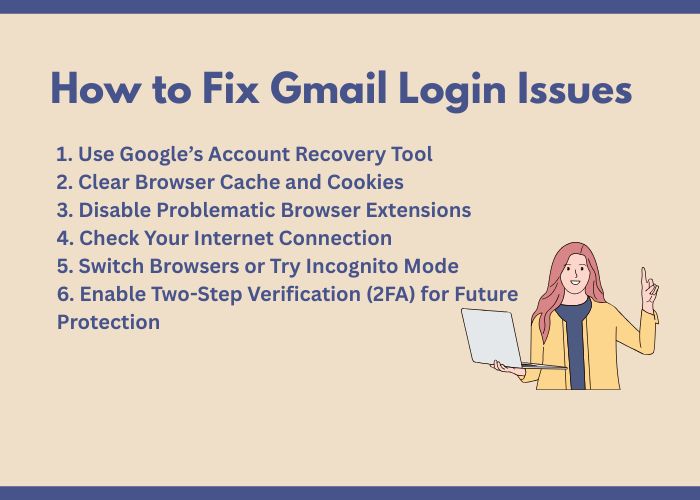
Step 1: Check Your Login Information
Confirm that:
- The email address is correct
- You selected the correct Google Account
- Caps Lock is disabled
- The keyboard language is correct
- The password manager is not entering an outdated password
Step 2: Test the Internet Connection
Open another website to verify that the connection is working.
If the connection is unstable, use only changes you are authorized to make:
- Restart the router
- Switch between Wi-Fi and mobile data
- Check VPN or managed-network issues with the responsible administrator
- Try another trusted network
Step 3: Use Incognito or Private Mode
Use this test for a page-loading problem, not as a mandatory recovery step. A private window provides a separate session, although some extensions may still run depending on browser settings.
If the page works there, investigate the ordinary browser profile. This narrows the possibilities but does not prove which cookie, extension, or setting caused the problem. For ownership recovery, return to the device and browser you normally use when possible.
Step 4: Clear Google Site Data
Consider clearing site data only after assessing whether it will remove useful access. Deleting Google cookies can sign you out and require verification again. If this is your only safe signed-in browser and you cannot sign back in, do not start with this step.
When you have a way to sign in again, review the browser’s data controls and select the intended Google/Gmail scope where supported. Check the confirmation screen; saved passwords, cookies, and cached content are different categories. Do not select password deletion when that is not your intention.
Step 5: Disable Browser Extensions
For a problem isolated to one browser profile, test relevant extensions one at a time where you have permission. Record the result, then restore settings that were not responsible.
On a managed work or school device, ask the administrator to review mandatory security or network components. Do not remove organizational protection or bypass access rules to complete a test.
Step 6: Update the Browser and Device
Install available updates for:
- The web browser
- The Gmail application
- Google Play Services on Android
- The phone or computer operating system
Restart the device after completing the updates.
Step 7: Use Google Account Recovery
For a forgotten password, unavailable verification, or suspected unauthorized access, use Google’s official recovery page. Check that the address is on accounts.google.com before entering information.
Use a familiar device, browser, and location where possible. Answer questions as accurately as you can. Supply an old password only when requested; you do not need to test a list of old passwords in the normal sign-in box.
Read email-address requests carefully. If asked for an address associated with the account, provide one you previously added and can access. Follow the actual screen if it requests a different contact address. The questions and available methods vary.
If ownership is not verified, follow Google’s advice for trying again. If a security delay is displayed, follow the instructions rather than assume an outside service can accelerate it.
Step 8: Check for Security Alerts
If the account remains signed in on another device, review recent security activity from that trusted device.
Look for:
- Unknown devices
- Unrecognized locations
- Password changes you did not make
- New recovery phone numbers or email addresses
- Suspicious third-party application access
Step 9: Contact Your Google Workspace Administrator
If the account belongs to a company, school, or organization, it may be managed through Google Workspace.
In this situation, contact the organization’s administrator. The administrator may be able to:
- Reset the password
- Restore a suspended organizational account
- Review login restrictions
- Check account licensing
- Assist with two-step verification policies
What to Do If You Think Your Gmail Account Was Hacked
Take immediate action if you notice an unfamiliar password change, unknown recovery information, suspicious sent messages, or login alerts from devices you do not recognize.
- Begin Google Account recovery.
- Change the password to a new and unique one.
- Sign out of devices you do not recognize.
- Review the recovery phone number and email address.
- Remove suspicious third-party access.
- Check Gmail forwarding addresses and filters.
- Enable or strengthen two-step verification.
- Scan your device for malware.
Do not reuse the new password on another website.
Prepare a Useful Support Brief Without Sharing Secrets
A short description helps a trusted helper or administrator distinguish an account issue from a local device problem. Include:
- Account type: personal or organization-managed; provide the full address only to the appropriate private support channel.
- Failure point: the screen or action where progress stops.
- Exact message: copy the wording or share a screenshot with sensitive details covered.
- Environment: browser, device, and whether the device is managed by an organization.
- Available access: whether a safe device is still signed in, without sending codes or credentials.
- Checks completed: what you changed and whether each test affected the result.
For example: “The inbox keeps reloading in my usual browser, but opens in another browser. I have not cleared cookies. This is a work account on a managed laptop.” This gives a clearer starting point than “Gmail is broken.”
Do not include passwords, verification or backup codes, security-key PINs, recovery links containing sensitive tokens, or screenshots of confidential messages. Keep account-recovery steps under your own control.
What Not to Do During Account Recovery
- Do not give anyone your Gmail password.
- Do not share verification codes or backup codes.
- Do not install remote-control software for an unknown support provider.
- Do not pay someone who promises to bypass Google security.
- Do not use repeated password guessing as a substitute for the recovery flow.
- Provide the most accurate information you remember when Google asks recovery questions; follow its instructions if you need to try again.
- Do not create unofficial recovery forms that request sensitive information.
Google states that it does not work with services claiming to provide account or password support. Account recovery should be completed through Google’s official process.
How to Protect Your Gmail Account After Recovery
1. Use a Strong and Unique Password
Create a password that is not used for any other website or application.
A password manager can help generate and store strong passwords securely.
2. Enable Two-Step Verification
Review the sign-in and verification options offered for your account. Passkeys can be used for sign-in and are not simply another one-time verification code.
Available options may include:
- Google prompts
- Authenticator applications
- Passkeys, where supported, as part of your account’s sign-in setup
- Hardware security keys
- Backup codes
- Phone verification where available
Google notes that SMS and phone-call codes can be more vulnerable to phone-number-based attacks than stronger verification methods.
3. Save Backup Codes Securely
Backup codes can help you sign in when your normal second verification method is unavailable.
Store them securely outside the mailbox you may need to recover. A backup code is single-use; follow Google’s instructions if you replace the set or think someone else obtained it.
4. Keep Recovery Information Current
Regularly check that your recovery phone number and recovery email address are still active and accessible.
5. Review Connected Devices and Applications
Remove devices and third-party applications that you no longer use or recognize.
6. Protect the Device
- Keep the operating system and browser updated.
- Use a screen lock.
- Avoid installing software from untrusted sources.
- Do not sign in on public or shared computers unless necessary.
- Sign out after using a shared device.
How Việt SEO Can Help with Gmail Login Problems
Việt SEO can explain troubleshooting steps for browser, device, connection, and organization-managed account issues within an agreed scope. This is independent technical guidance, not a Google account-unlocking service or a claim of affiliation with Google.
No support fee is listed in this article. If you need individual assistance, agree on the work and any charge first. A fee for technical guidance cannot purchase an exception to Google’s verification process.
Our support may include:
- Checking whether the problem is browser- or device-related
- Assessing whether browser troubleshooting is appropriate before clearing data
- Checking common network and DNS problems
- Explaining how to use Google’s official recovery process
- Guiding an authorized Google Workspace administrator within their available permissions
- Helping configure Gmail or Google Workspace on supported devices
- Providing account-security recommendations
Important Security Notice
Việt SEO cannot bypass Google’s security system, retrieve a Gmail password, guarantee account recovery, or approve a disabled-account appeal.
The owner must complete Google’s verification process for a personal account. Organization-managed accounts may also require action by an authorized administrator; owning the domain or website does not automatically grant that role.
For your safety, Việt SEO will never ask you to provide:
- Your Gmail password
- A two-step verification code
- A backup code
- A passkey
- A security-key PIN
Contact Việt SEO
- Website: https://vietseo.com/
- Hotline/Zalo: 0917 212 969
Frequently Asked Questions About Gmail Login Problems
Why is Gmail rejecting a password that I believe is correct?
The saved password may be outdated, the password may have been changed on another device, the browser may be entering incorrect information, or the account may require recovery after suspicious activity. Check the keyboard and saved password before starting Google Account recovery.
Can I recover Gmail without my old phone number?
Possibly. Google may offer another verification method based on the recovery options and security information already associated with the account. Select Try another way when it is available and complete the official recovery process.
Why am I not receiving a Gmail verification code?
Check the displayed destination and whether that method is usable. If Try another way is offered, use a previously configured option you can access. Not every account will be offered the same choices.
How long does Google Account recovery take?
There is no universal completion time. Some requests involve a security delay; follow the timing and instructions shown by Google. A helper cannot guarantee or purchase faster verification.
Can Google or a support provider tell me my Gmail password?
No legitimate support provider should reveal or request your existing password. When recovery is successful, you may be allowed to create a new password.
Can Việt SEO recover my Gmail account for me?
Việt SEO can guide you through troubleshooting and Google’s official recovery steps, but it cannot verify ownership, bypass security, or guarantee that Google will restore the account.
What should I do if my company Gmail account is locked?
If the address is managed through Google Workspace, contact your organization’s administrator. The administrator may be able to reset the password, review account status, or assist with organizational security policies.
Will clearing browser cache and cookies delete my Gmail messages?
Clearing browser data does not delete messages already stored in Gmail on Google’s servers. It can sign you out and remove local data or preferences. Offline content or unsynced work needs separate consideration. Do not clear the only useful signed-in session unless you can regain access.
Should I pay someone to recover my personal Gmail account?
Do not pay for a promise to bypass ownership verification. Independent help can explain troubleshooting, but you should keep credentials and verification steps private and under your control.
Restore Access to Gmail Safely
Keep two paths separate: investigate page-loading problems with controlled browser and connection checks, and use Google’s recovery flow when you cannot complete sign-in or verification. Do not apply every troubleshooting step to every situation.
Preserve useful access on safe devices, protect lost devices, and record what you have tried. For managed accounts, involve the administrator. After access is restored, review security activity, recovery information, connected apps, and Gmail forwarding and filters.
Use a clear support brief when asking for help, while keeping passwords and verification information private.
Official references: Google Account recovery, recovery tips, and Gmail loading help. Follow the current instructions shown for your account.




Questions & Comments
You can ask a question about this article. Viet SEO will review and reply after moderation.
Freek Human
12/06/2026Please first check that your email address and password are entered correctly, Caps Lock is turned off, and your browser is not automatically using an old saved password. You can also try signing in through an Incognito/Private window or another browser.
If you forgot your password or Google asks for additional verification, please use Google’s official account recovery process and select “Forgot password?” or “Try another way.” For the best chance of recovery, use a device, browser, and internet connection that you have previously used with the account.
If this is a company or school Gmail account managed through Google Workspace, please contact your organization’s administrator, as they may be able to reset the password or check whether the account has been suspended.
For your security, never share your password, verification code, backup code, or remote access to your device with anyone.
Could you please tell us the exact error message shown when you try to log in? This will help us suggest the correct next step.